# How to add Auth0 authentication to a React app
Author: [Aaishika S Bhattacharya](https://www.aaishika.com)
Published: 2022-01-12
Updated: 2026-09-29
Source: https://www.aaishika.com/writing/auth0-in-react
Follow a beginner-friendly walkthrough for adding Auth0 authentication to a React single-page application, including login, logout, and callback handling.
> **Updated September 29, 2026:** I replaced the Create React App setup and manual token handling with Vite and the Auth0 React SDK. Start with the walkthrough below; the obsolete 2022 setup instructions are preserved under a historical toggle at the end.
**Auth0** is an easy-to-implement, adaptable authentication and authorization platform. In short, it is a highly customizable platform that provides authentication and authorization as a service that can help in securing your application with tools that offer seamless integration.
Using Auth0 for authentication with client-side apps means that Auth0 is going to be responsible for issuing an access token after the user’s identity has been verified. There are several ways to verify a user’s identity, out of those, two common authentication mechanisms found abundantly today are via credentials given by the user (the traditional email or username combination with a password) or through a social identity provider.
Find out more about Auth0, [here](https://auth0.com/docs/).
## Why use Auth0 for React authentication?
* **Single Sign-On** across applications and identity providers. SSO allows users to simply log in once and use all applications they have been granted access to. You could use your Google account to authenticate yourself with an application that decided to delegate the responsibility to create, maintain, and protect your username and password to Google.
* **Universal Login**, which significantly improves user experience while boosting security and consistency. Auth0 hosts the login experience, so this React app does not collect passwords itself. Your application still needs correct callback settings and secure API authorization.
* **Multi-Factor Authentication** provides an additional layer of security, decreasing the likelihood of unauthorized access.
* **Anomaly Detection** detects anomalies and stops malicious attempts to access your application. Auth0 offers two different kinds of shields, Brute-force protection and breached password detection.
If you want to read about these features in detail, head over to this [link](https://auth0.com/blog/auth0-features-to-fall-in-love-with/).
## Add Auth0 to a React app today
This is a small, client-rendered React single-page app. [Create React App is deprecated](https://react.dev/blog/2025/02/14/sunsetting-create-react-app); Vite keeps this example focused on browser authentication. For a Next.js app with server-side sessions, use [Auth0’s Next.js SDK](https://github.com/auth0/nextjs-auth0) instead.
**Tested September 29, 2026:** Node.js **22.23.3**, npm **11.0.0**, create-vite **9.2.1**, Vite **8.3.1**, React and React DOM **19.3.0**, and `@auth0/auth0-react` **2.27.0** on macOS. The setup, production build, and unauthenticated UI were checked locally. A real login, callback, and logout still need verification with your Auth0 tenant; no live account flow was tested for this update.
### Create the app
Use Node.js 22.23.3 and npm 11.0.0 for the same baseline. In a new directory:
```bash
npm create vite@9.2.1 auth0-react -- --template react --no-interactive
cd auth0-react
npm install --save-exact react@19.3.0 react-dom@19.3.0 @auth0/auth0-react@2.27.0
npm install --save-dev --save-exact vite@8.3.1
```
Keep the generated `package-lock.json` and use `npm ci` for subsequent installs. The exact versions above are the tested baseline, not a promise that future releases behave identically.
### Configure the Auth0 application
In your [Auth0 dashboard](https://manage.auth0.com/), create a **Single Page Application**. Copy its **Domain** and **Client ID**, then save these settings:
| Setting | Local value |
| --- | --- |
| Allowed Callback URLs | `http://localhost:5173` |
| Allowed Logout URLs | `http://localhost:5173` |
| Allowed Web Origins | `http://localhost:5173` |
This example returns to the root URL, so it needs no `/callback` route or router dependency. Web origins allow the SDK’s browser session operations; they do not grant access to your backend API. The [Auth0 React quickstart](https://auth0.com/docs/quickstart/spa/react) covers the dashboard settings.
Create `.env.local` in the project root, replacing both placeholders. Use the domain without `https://` or a trailing slash.
```dotenv filename=".env.local"
VITE_AUTH0_DOMAIN=your-tenant.us.auth0.com
VITE_AUTH0_CLIENT_ID=your-client-id
```
Vite exposes `VITE_` variables to the browser. These two values are public identifiers. **Never put an Auth0 client secret here.** The starter ignores `*.local`; keep that rule and restart the dev server after editing the file.
### Connect the SDK
Replace `src/main.jsx` with:
```jsx filename="src/main.jsx"
import { StrictMode } from 'react';
import { createRoot } from 'react-dom/client';
import { Auth0Provider } from '@auth0/auth0-react';
import App from './App.jsx';
import './index.css';
const domain = import.meta.env.VITE_AUTH0_DOMAIN;
const clientId = import.meta.env.VITE_AUTH0_CLIENT_ID;
createRoot(document.getElementById('root')).render(
{domain && clientId ? (
) : (
Set both Auth0 values in .env.local and restart Vite.
Signed in as {user?.name ?? user?.email ?? 'a user'}.
) : (
)}
);
}
```
The [React SDK](https://auth0.com/docs/libraries/auth0-react) handles Authorization Code with PKCE, callback processing, and token lifecycle. Leave its default in-memory token cache in place for this example; there is no hand-written hash parser or token storage class to maintain.
### Run it and check the complete flow
```bash
npm run build
npm run dev -- --port 5173 --strictPort
```
Open `http://localhost:5173`. The strict port setting prevents Vite from silently choosing a port that is missing from Auth0’s allowlists. If the port is occupied, stop the other server or change all three dashboard values and the dev command together.
With your real tenant, check **Log in → Universal Login → return to the app → profile → Log out → return to the app**. Also try cancelling login and refreshing the page. Session restoration can depend on browser privacy settings and tenant configuration; do not add persistent token storage just to hide a failed check.
For deployment, add your exact HTTPS origin to the three Auth0 settings and build with the matching environment values. This UI shows login state; your API must separately validate access tokens and permissions. An ID token describes the signed-in user and is not an API access token. To call an API, configure its audience and request an access token through the SDK as described in [Auth0’s API access guide](https://auth0.com/docs/quickstart/spa/react/02-calling-an-api).
Once authentication is working, you can [use Auth0 Actions to add custom logic to the login flow](/writing/auth0-actions).
## Historical setup instructions
Read the superseded January 2022 setup (historical)
**Historical reference — not current setup instructions.** These steps use Create React App, `auth0-js`, the implicit flow, and older React Router APIs. Their commands and screenshots have not been re-tested, and the original `ReactDOM.render` snippet is incomplete. Use the updated walkthrough above for a new app.
## How to set up the React app
In a terminal window, execute the following commands:
```
npx create-react-app auth0-authentication
cd auth0-authentication
npm i react-router react-router-dom
```
The first command will create a new React app for you while the second one navigates you into the directory. The two libraries that we installed in the third command will handle the navigation of our app. Run `npm start`to see what the app looks like before we make any changes. The command will start a development server that listens at port 3000 and will open the new app in your default web browser.
Now let’s update the `index.js` file. Simply add the following code snippet to the file:
```javascript filename="index.js"
import { BrowserRouter } from 'react-router-dom';
ReactDOM.render(
, document.getElementById('root'));
serviceWorker.unregister();
```
What we did was import `BrowserRouter` from the `react-router-dom` library, and encapsulate the `App` component inside this router. That’s pretty much it for kickstarting React Router.
## How to configure Auth0 for a React app
1. To integrate Auth0 in our Application, we first need an Auth0 account. To create an account, click [here](https://auth0.com/signup) and sign up for free.
2. Once you’re done with this, scroll down to find the option that says “`Create Application`”.

3\. In the modal that follows, add the name of the application and then select `Single Page Web Applications` as its type.
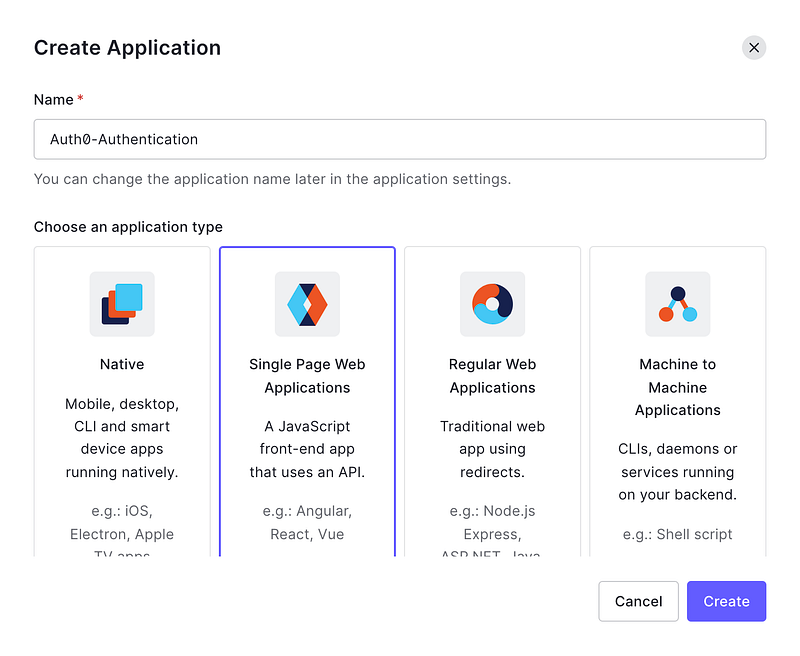
4\. Click the `Create` button which will redirect you to the “Quick start” section.
5\. Click on the `Setting` tab to change the configuration of your Auth0 application. We’ll also be borrowing some data from this tab, precisely the Domain, and Client ID.
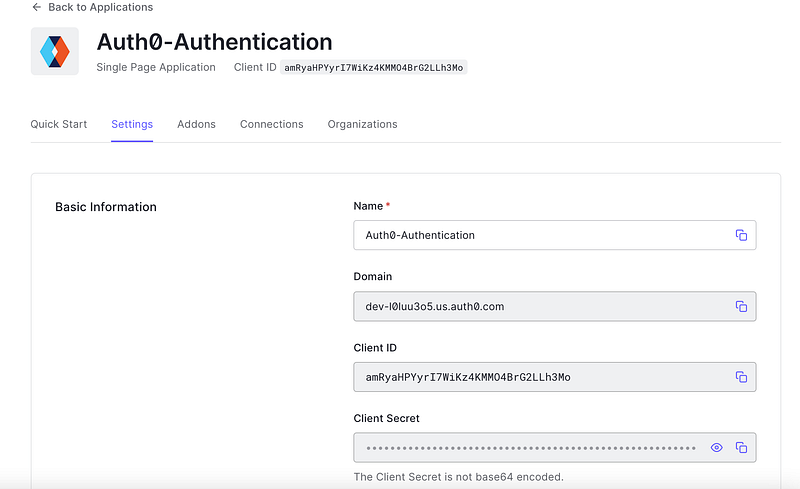
6\. Search for the Allowed Callback URLs field and insert `[http://localhost:3000/callback](http://localhost:3000/callback)` on it.
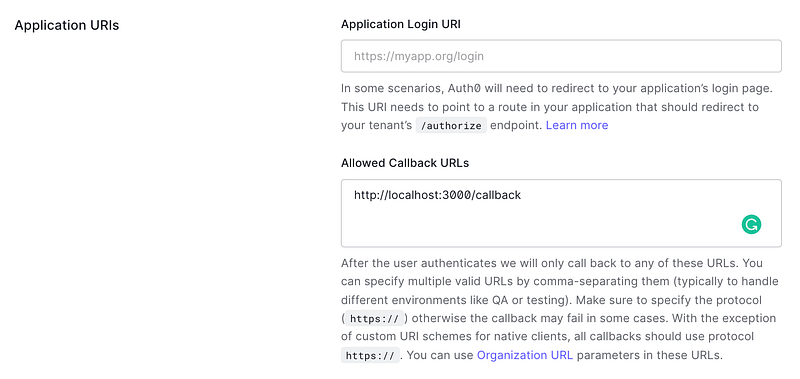
While authenticating the app using Auth0, users will be redirected to the Universal Login Page of the app and after the authentication process regardless of being successful or not, they will be redirected back to your application. Auth0 will redirect users only to URLs registered on the Allowed Callback URLs for security reasons.
7\. Now we need to add Allowed Web Origins and Allowed Logout URLs. As the app is going to issue a request to Auth0, we will need to add `http://localhost:3000` to Allowed Web Origins. Without this value, Auth0 would deny any incoming request coming from the app. To enable users to end their session at Auth0, we need to call the Logout URL. Similar to the authorization endpoint which is Allowed Web Origins, in this case, the log-out endpoint only redirects users to whitelisted URLs after the process. Hence, we’ll add `http://localhost:3000` here as well.
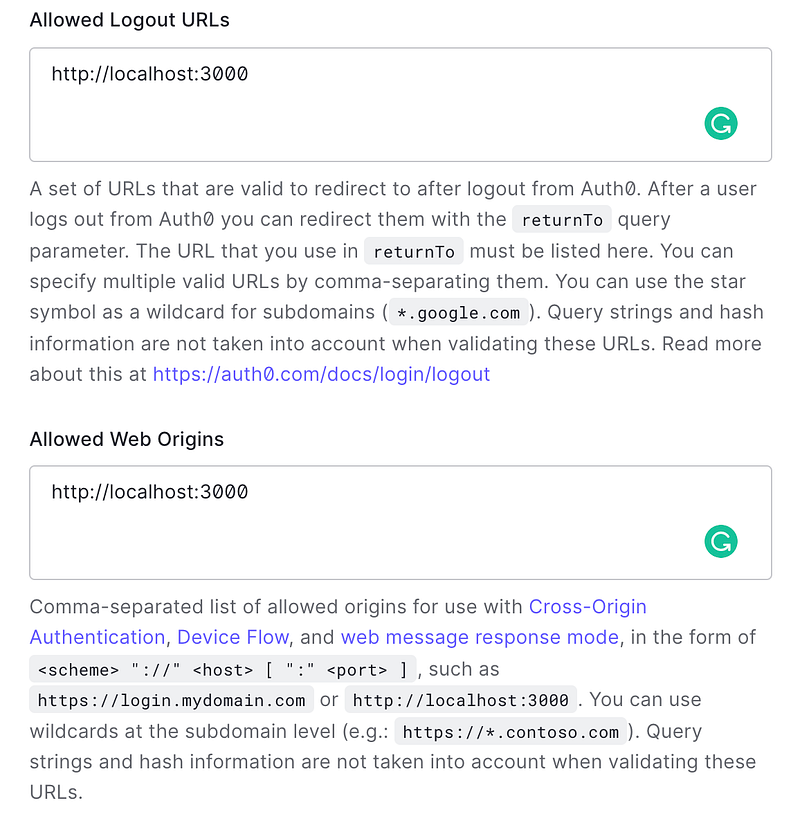
And that’s pretty much it for setting up things over Auth0.
## How to integrate Auth0 with the React app
We’ll be using the official Auth0 Library now to integrate and secure the app we just created. Simply return to the terminal and execute the following command.
```
npm install auth0-js
```
We’ll now create a class that will store the Auth0 authentication functionality. We simply need to create a new file `Auth.js` inside the `src` folder of our react app and add the following lines of code:
```javascript filename="Auth.js" {7-9}
import auth0 from 'auth0-js';
class Auth {
constructor() {
this.auth0 = new auth0.WebAuth({
// Update Lines 7-9 with data from the Auth0 Dashboard of your Application
domain: '',
audience: 'https:///userinfo',
clientID: '',
redirectUri: 'http://localhost:3000/callback',
responseType: 'id_token',
scope: 'openid profile'
});
this.getProfile = this.getProfile.bind(this);
this.handleAuthentication = this.handleAuthentication.bind(this);
this.isAuthenticated = this.isAuthenticated.bind(this);
this.signIn = this.signIn.bind(this);
this.signOut = this.signOut.bind(this);
}
getProfile() {
return this.profile;
}
getIdToken() {
return this.idToken;
}
isAuthenticated() {
return new Date().getTime() < this.expiresAt;
}
signIn() {
this.auth0.authorize();
}
handleAuthentication() {
return new Promise((resolve, reject) => {
this.auth0.parseHash((err, authResult) => {
if (err) return reject(err);
if (!authResult || !authResult.idToken) {
return reject(err);
}
this.idToken = authResult.idToken;
this.profile = authResult.idTokenPayload;
// set the time that the id token will expire at
this.expiresAt = authResult.idTokenPayload.exp * 1000;
resolve();
});
})
}
signOut() {
// clear id token, profile, and expiration
this.idToken = null;
this.profile = null;
this.expiresAt = null;
this.auth0.logout({
returnTo: 'http://localhost:3000',
clientID: '',
});
}
}
const auth0Client = new Auth();
export default auth0Client;
```
As described above, we simply create an instance of `auth0.WebAuth` with our Auth0 values and define some other important configurations. Do NOT forget to replace the data from Line 7 to 9 with the one in your dashboard to make the app work.
Now to handle the callback route (`http://localhost:3000/callback`), we’ll define a component, create a new file called `Callback.js` inside the `src` directory. Simply add this code to the newly created file:
```javascript filename="Callback.js"
import React, {Component} from 'react';
import {withRouter} from 'react-router-dom';
import auth0Client from './Auth';
class Callback extends Component {
async componentDidMount() {
await auth0Client.handleAuthentication();
this.props.history.replace('/');
}
render() {
return (
Authentication with Auth0 works!
);
}
}
export default withRouter(Callback);
```
All this component does is call the `handleAuthentication` method to fetch the user information that is shared by Auth0. It also redirects users to the home page (`history.replace('/')`) after finishing the `handleAuthentication` process. The component also shares a message which reads “Authentication with Auth0 works!” to let you know that you’re on the right path.
## Update the React frontend
To reflect all the changes we made onto our front end, we need to update the `App.js` file and create a new file `Home.js` inside `src` folder. `Home.js` validates if the user is authenticated or not.
Check out both the files and make amendments.
```javascript filename="App.js"
import React from 'react';
import './App.css';
import { Route } from 'react-router-dom';
import Callback from './Callback';
import Home from './Home';
function App() {
return (
)
}
export default App;
```
```javascript filename="Home.js"
import React, { Component } from 'react';
import logo from './logo.svg';
import './App.css';
import auth0Client from './Auth';
class Home extends Component {
componentDidMount() {
if (!auth0Client.isAuthenticated()) {
auth0Client.signIn();
}
}
signOut = () => {
auth0Client.signOut();
this.props.history.replace('/');
}
render() {
return (
{
auth0Client.isAuthenticated() &&
}
)
}
}
export default Home;
```
After making and saving all the changes, execute `npm start`. Your React app with Auth0 User Authentication is ready.
## Ending notes for the original example
The app we just created can be reused for any React+Auth0 App you plan on building. Go through the official documentation of Auth0 to make it better and read about all the other services and tools offered by the Organization. Personally, I prefer Auth0 over Firebase simply because of the Single Sign-On Feature with access to a plethora of Identity Providers.